

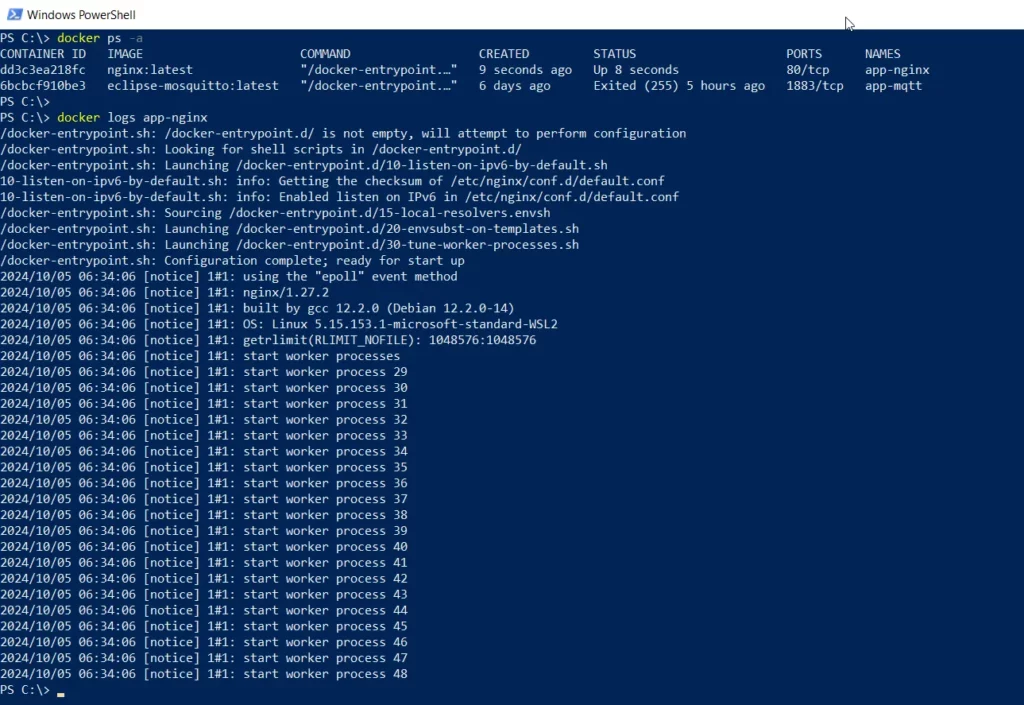
Docker provides a built-in way to view logs generated by your containers. Whether you’re troubleshooting an application, monitoring runtime activity, or checking error messages, the docker logs command lets you access everything written to a container’s standard output (stdout) and standard error (stderr).
You can use this command to inspect logs from both running and stopped containers, making it an essential tool for debugging and monitoring Docker applications.
In this guide, you’ll learn how to view Docker container logs, stream logs in real time, and display a specific number of log entries.
View Logs of a Docker Container
The docker logs command displays log output from a specified container.
Syntax
docker logs <container_name_or_id>
Replace <container_name_or_id> with the container’s name or its unique container ID.
Find the Container Name or ID
Before viewing logs, you’ll need to identify the target container.
Run the following command to list all Docker containers, including both running and stopped containers.
docker ps -a
The command displays useful information such as:
- Container ID
- Container name
- Image
- Status
- Command
- Port mappings
Once you’ve identified the correct container, you can use either its name or container ID with the docker logs command.
View Logs for a Running Docker Container
To display logs from a running container, execute the following command.
docker logs app-nginx
Example Output
[INFO] Nginx started successfully
[INFO] Listening on port 80
[INFO] New connection established
The command retrieves and displays all available log entries stored for the app-nginx container.
This is one of the quickest ways to troubleshoot application errors or verify that a container started successfully.
Follow Docker Logs in Real Time
If you want to monitor a container as new log messages are generated, use the -f (follow) option.
Syntax
docker logs -f <container_name_or_id>
Example
docker logs -f app-mqtt
The terminal remains open and continuously streams new log entries as they’re written by the container.
This option is especially useful when:
- Monitoring application startup
- Debugging runtime errors
- Watching live API requests
- Tracking background jobs
- Monitoring web server activity
To stop following the logs, press Ctrl + C.
Display the Last Few Log Entries
Large containers can generate thousands of log lines. Instead of displaying the entire log history, you can limit the output using the --tail option.
Syntax
docker logs --tail <number> <container_name_or_id>
Example
The following command displays the last 10 log entries from the app-nginx container.
docker logs --tail 10 app-nginx
Example Output
[INFO] Worker process started
[INFO] Connection accepted
[WARNING] Client disconnected
[INFO] Request completed
Using --tail helps you focus on the most recent activity without scrolling through older log messages.
Combine Real-Time Monitoring with the Tail Option
You can also combine the -f and --tail options to display the latest log entries and continue streaming new ones.
docker logs --tail 20 -f app-nginx
This command first displays the last 20 log lines and then continues showing new log messages as they are generated.
This is one of the most commonly used combinations when troubleshooting production containers.
When Should You Check Docker Logs?
Viewing container logs is useful in many situations, including:
- Diagnosing application startup failures
- Investigating unexpected container crashes
- Monitoring web servers and APIs
- Checking application errors
- Reviewing warning messages
- Verifying successful deployments
- Tracking background processes
- Troubleshooting configuration issues
Because Docker captures both standard output and standard error, logs often provide the first clues when something goes wrong.
Common Docker Logs Commands
| Task | Command |
|---|---|
| View container logs | docker logs app-nginx |
| Follow logs in real time | docker logs -f app-nginx |
| Display the last 10 log entries | docker logs --tail 10 app-nginx |
| Show the last 20 lines and continue streaming | docker logs --tail 20 -f app-nginx |
The docker logs command is one of the most useful tools for monitoring and troubleshooting Docker containers. It allows you to inspect log output from both running and stopped containers, making it easier to identify errors, verify application behavior, and monitor services.
Whether you need to review previous log entries, follow live activity, or display only the latest messages, Docker provides flexible options through the docker logs command to simplify container management.
Frequently Asked Questions
Can I view logs from a stopped Docker container?
Yes. The docker logs command works with both running and stopped containers as long as the logs are still available.
How do I monitor Docker logs in real time?
Use the -f option:
docker logs -f app-nginx
The command continuously displays new log entries until you stop it.
How can I display only the latest log entries?
Use the --tail option to limit the number of displayed lines.
docker logs --tail 50 app-nginx
Can I use a container ID instead of the container name?
Yes. The docker logs command accepts either the container name or its container ID.
Why isn’t docker logs showing any output?
If no logs are displayed, the application inside the container may not be writing to stdout or stderr. Some applications store logs in files inside the container instead of sending them to Docker’s logging system.