

Managing Docker containers often involves starting, stopping, and restarting services as part of development or production workflows. When you no longer need a running container or need to perform maintenance, Docker provides a simple way to stop it safely.
The docker stop command sends a termination signal to a running container, giving the application enough time to shut down gracefully before the container exits.
In this guide, you’ll learn how to stop a Docker container, verify that it has stopped, and understand what happens behind the scenes when the command is executed.
Stop a Running Docker Container
To stop a running container, use the docker stop command followed by the container name or container ID.
Syntax
docker stop <container_name_or_id>
You can specify either the container’s name or its unique ID.
Stop a Container by Name
If you know the container name, stopping it is straightforward.
Example
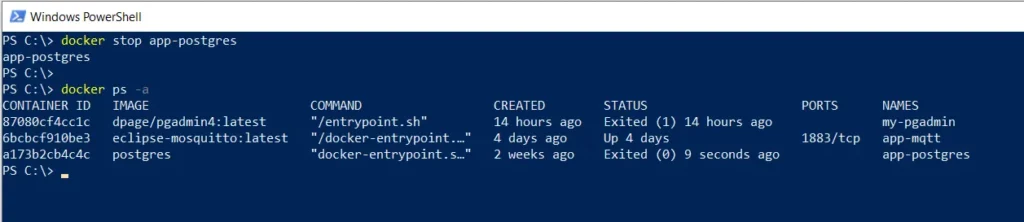
The following command stops a container named app-postgres.
docker stop app-postgres
Output
app-postgres
Docker returns the container name after successfully stopping it.
The application running inside the container receives a SIGTERM signal first, allowing it to finish active tasks, close connections, and release system resources before shutting down.
This graceful shutdown process helps prevent data corruption and ensures applications exit cleanly.
Stop a Container by Container ID
You can also stop a container using its container ID.
First, list the running containers.
docker ps
Example output:
CONTAINER ID   IMAGE        NAMES
3f8b2d7a9c1e   postgres     app-postgres
Use the container ID with the docker stop command.
docker stop 3f8b2d7a9c1e
Docker stops the specified container in the same way as when using the container name.
Verify That the Container Has Stopped
After stopping a container, you can confirm its status using the docker ps -a command.
Unlike docker ps, which shows only running containers, docker ps -a displays both running and stopped containers.
Command
docker ps -a
Example Output
CONTAINER ID   IMAGE       STATUS              NAMES
3f8b2d7a9c1e   postgres    Exited (0)          app-postgres
If the STATUS column displays Exited, the container has been successfully stopped.
Understanding How docker stop Works
When you run the docker stop command, Docker doesn’t immediately terminate the container.
Instead, it follows a controlled shutdown process.
- Docker sends a SIGTERM signal to the container’s main process.
- The application performs any necessary cleanup tasks.
- Running processes are closed gracefully.
- Network connections are terminated.
- The container exits.
This approach helps applications shut down safely without interrupting active operations.
List Running Containers Before Stopping One
If you’re unsure which containers are currently running, list them first.
docker ps
Example output:
CONTAINER ID   IMAGE      STATUS         NAMES
3f8b2d7a9c1e   postgres   Up 2 hours     app-postgres
Once you’ve identified the correct container, stop it using either its name or ID.
Common Docker Stop Commands
| Task | Command |
|---|---|
| Stop a container by name | docker stop app-postgres |
| Stop a container by ID | docker stop 3f8b2d7a9c1e |
| View running containers | docker ps |
| View all containers | docker ps -a |
When Should You Stop a Docker Container?
Stopping a container is useful in several situations, including:
- Performing application maintenance
- Applying configuration changes
- Updating Docker images
- Troubleshooting application issues
- Conserving system resources
- Restarting services after deployment
- Shutting down development environments
Using docker stop ensures applications have time to shut down properly before the container exits.
docker stop vs docker kill
Although both commands stop containers, they behave differently.
| Command | Behavior |
|---|---|
docker stop | Sends a SIGTERM signal, allowing the application to shut down gracefully. |
docker kill | Immediately terminates the container by sending a SIGKILL signal without waiting for cleanup. |
In most cases, docker stop is the recommended option because it allows applications to close files, save data, and release resources safely.
Use docker kill only when a container becomes unresponsive or fails to stop normally.
The docker stop command is the standard way to stop a running Docker container safely. It sends a SIGTERM signal to the application’s main process, allowing it to complete cleanup tasks before shutting down.
After stopping a container, you can verify its status with docker ps -a, where the STATUS column displays Exited for stopped containers.
Understanding how to stop containers correctly is an essential Docker skill that helps maintain application stability and supports smooth deployment and maintenance workflows.
Frequently Asked Questions
How do I stop a running Docker container?
Use the following command:
docker stop app-postgres
Replace app-postgres with your container’s name or ID.
Can I stop a container using its ID?
Yes. The docker stop command accepts both the container name and the container ID.
Example:
docker stop 3f8b2d7a9c1e
How can I verify that a container has stopped?
Run:
docker ps -a
If the STATUS column shows Exited, the container has stopped successfully.
What signal does docker stop send?
By default, Docker sends a SIGTERM signal to allow the application to shut down gracefully.
What happens if the container doesn’t stop?
If the application doesn’t exit after receiving the termination signal, Docker eventually forces the container to stop. In such cases, you can also use docker kill to terminate the container immediately.