

Docker makes it easy to remove containers that are no longer needed using the docker rm command. Whether the container is stopped or currently running, there are several ways to delete it depending on its state.
This guide explains how to remove stopped containers, delete running containers, and force-remove containers when necessary.
Remove a Stopped Docker Container
If the container has already been stopped, you can delete it with the docker rm command followed by the container’s name or ID.
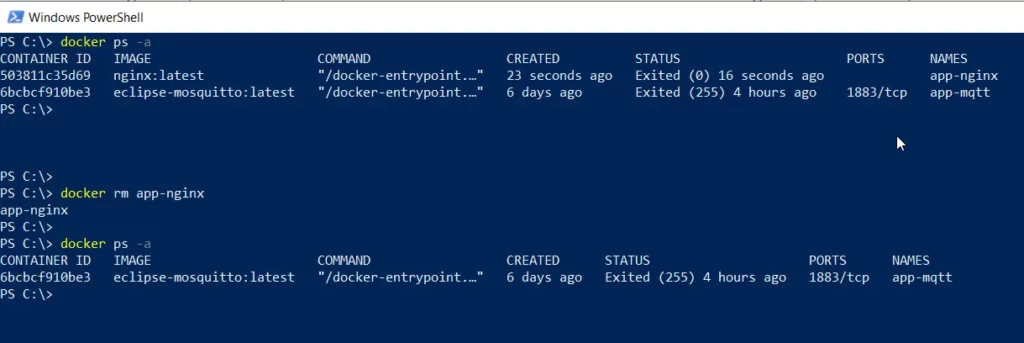
Before removing a container, you can list all available containers using:
docker ps -a
This command displays both running and stopped containers, including their:
- Container ID
- Image
- Status
- Command
- Container name
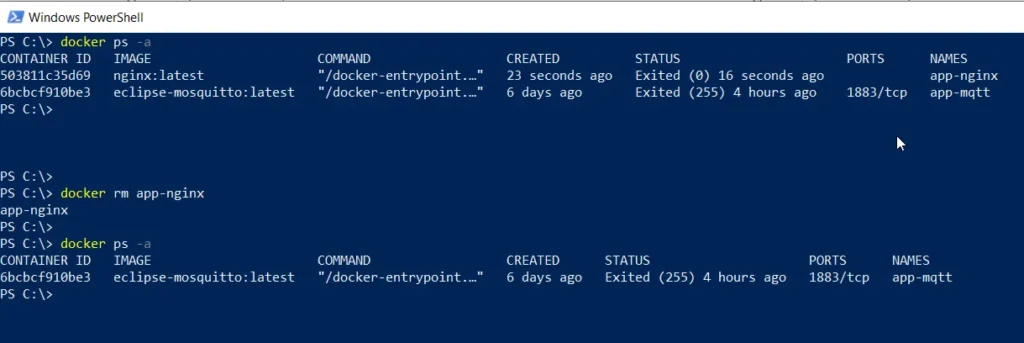
For example, to remove a stopped container named app-nginx, run:
docker rm app-nginx
Example Output
app-nginx
Once the command completes successfully, the container is permanently removed from your Docker environment.
Remove a Running Docker Container
Docker does not allow you to remove a running container directly.
You must stop it first before deleting it.
To stop and remove a running container named app-nginx, run:
docker stop app-nginx
docker rm app-nginx
Example Output
app-nginx
app-nginx
The first command stops the container, while the second removes it from your system.
Error When Removing a Running Container
If you attempt to remove a running container without stopping it first, Docker returns an error similar to the following:
Error response from daemon: cannot remove container "/app-nginx": container is running: stop the container before removing or force remove
This prevents accidental deletion of active containers.
Force Remove a Docker Container
If you want to delete a running container immediately, you can use the -f (force) option.
docker rm -f app-nginx
Example Output
app-nginx
The -f flag automatically stops the container before removing it, eliminating the need to run docker stop separately.
Remove Multiple Docker Containers
You can also remove multiple containers in a single command by specifying multiple container names or IDs.
docker rm container1 container2 container3
Docker will delete each container in the order specified, provided they are not running.
Remove All Stopped Containers
To clean up every stopped container on your system, use the docker container prune command.
docker container prune
Docker will prompt you for confirmation before deleting all stopped containers.
If you want to skip the confirmation prompt, use:
docker container prune -f
This is a quick way to reclaim disk space and remove unused containers.
When Should You Remove Docker Containers?
Deleting unused containers helps keep your Docker environment organized and reduces unnecessary disk usage.
You should consider removing containers when:
- They are no longer needed.
- A container has been replaced by a newer version.
- You’re cleaning up your development environment.
- You want to free up storage space.
Remember that removing a container permanently deletes its writable layer. Any data stored inside the container that isn’t mounted to a Docker volume will be lost.
The docker rm command is the standard way to delete Docker containers.
- Use
docker rm <container-name>to remove a stopped container. - Stop a running container with
docker stopbefore deleting it. - Use
docker rm -fto force-remove a running container in a single command. - Use
docker container pruneto quickly delete all stopped containers and free up disk space.
Regularly removing unused containers is a simple way to keep your Docker environment clean and easier to manage.