

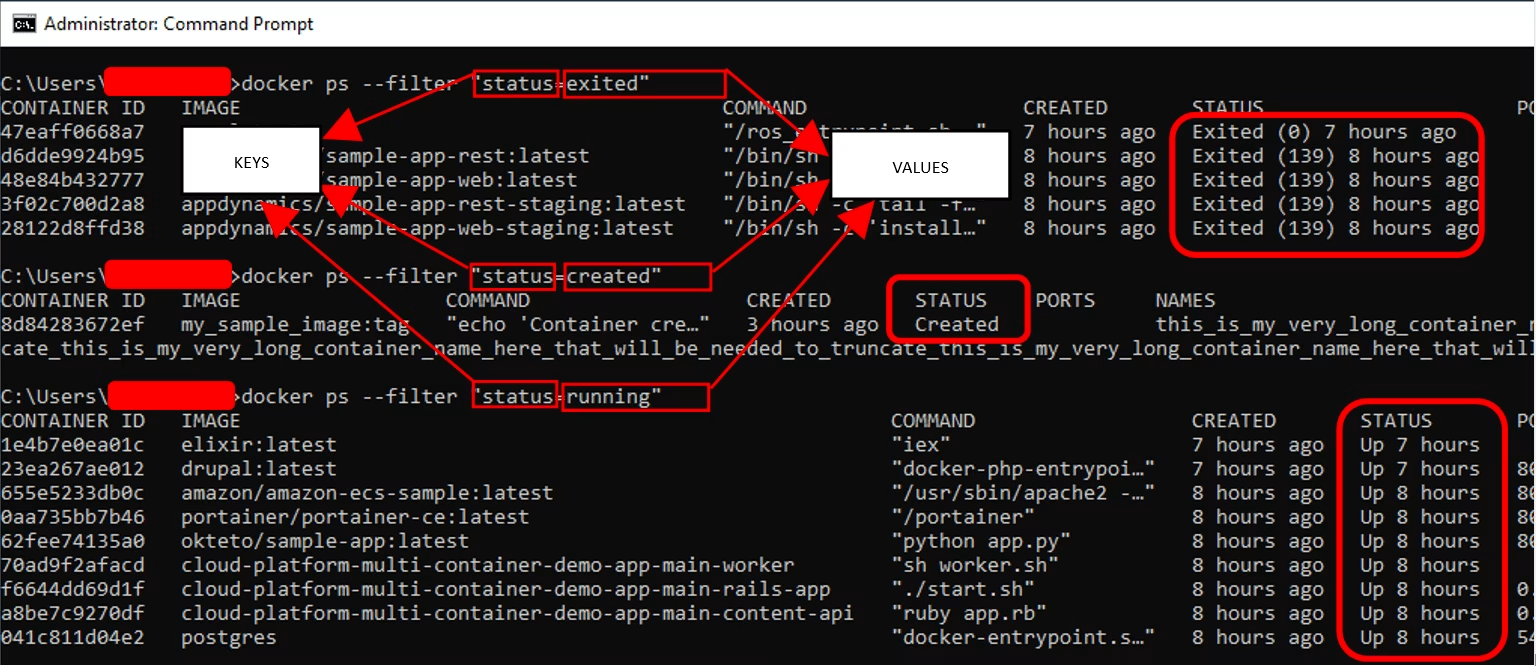
Docker provides a simple command-line interface for checking which containers are currently running and which ones have stopped. This is especially useful when troubleshooting an application, checking service status, or managing multiple containers from the terminal.
The most commonly used command is docker ps, which displays the containers that are currently running. If you also need to see containers that have stopped or exited, use docker ps -a.
The two commands are similar, but they serve different purposes. In this guide, we’ll look at how to list running Docker containers and how to display all Docker containers, including stopped containers.
How to List Running Docker Containers Using docker ps
When you only want to see containers that are currently active, use the docker ps command. It provides a quick overview of the containers that are running on your Docker host.
Open a terminal or PowerShell window and run:
docker ps
The command returns a table containing useful information about each running container, including:
- CONTAINER ID: The unique identifier assigned to the container.
- IMAGE: The Docker image used to create the container.
- COMMAND: The command currently being executed inside the container.
- CREATED: How long ago the container was created.
- STATUS: The current state and uptime of the container.
- PORTS: Any published or mapped ports.
- NAMES: The name assigned to the container.
For example, if your Docker environment contains two active services, the output might show containers named app-mqtt and app-postgres.
This makes docker ps Useful when you want to quickly confirm that your expected services are running.
Output:

What Does docker ps Show?
The important point to remember is that docker ps only displays currently running containers.
If a container has stopped, exited, or failed, it will not appear in the default docker ps output.
For example, if you have three containers:
app-mqttrunningapp-postgresrunningapp-pgadminstopped
Running:
docker ps
will show only app-mqtt and app-postgres.
How to List All Docker Containers Using docker ps -a
Sometimes you need more than a list of active containers. When troubleshooting a service or checking why an application stopped, it is useful to see containers regardless of their current state.
For this purpose, Docker provides the -a option.
Run:
docker ps -a
The -a option tells Docker to display all containers, including those that are currently running as well as containers that have stopped.
The output contains the same basic information asdocker ps, but it also includes containers that are no longer active.
Output:

Example of docker ps -a
Suppose your Docker environment contains these three containers:
app-mqttapp-postgresapp-pgadmin
If the first two containers are running while app-pgadmin has stopped, running:
docker ps -a
will display all three containers.
The STATUS column will indicate the current state of each container. A stopped container may show a status such as:
Exited (1) 29 minutes ago
This tells you that the container exited with status code 1 and stopped approximately 29 minutes ago.
Seeing stopped containers is particularly helpful when investigating failed services because the container itself may still contain useful information about what happened.
Difference Between docker ps and docker ps -a
The easiest way to remember the difference is:
| Command | What it displays |
|---|---|
docker ps | Running containers only |
docker ps -a | All containers, including stopped ones |
Use docker ps when you want a quick view of active Docker services.
Use docker ps -a when you need to inspect the complete list of containers, including containers that have exited or stopped.
Conclusion
Docker makes it easy to check the state of containers directly from the terminal. The docker ps command lists containers that are currently running, while docker ps -a displays all containers, including those that have stopped.
If you are simply checking whether your Docker services are active, start with:
docker ps
When troubleshooting stopped or failed containers, use:
docker ps -a
Understanding the difference between these two commands is a basic Docker skill you’ll use regularly when managing and troubleshooting containerised applications.