

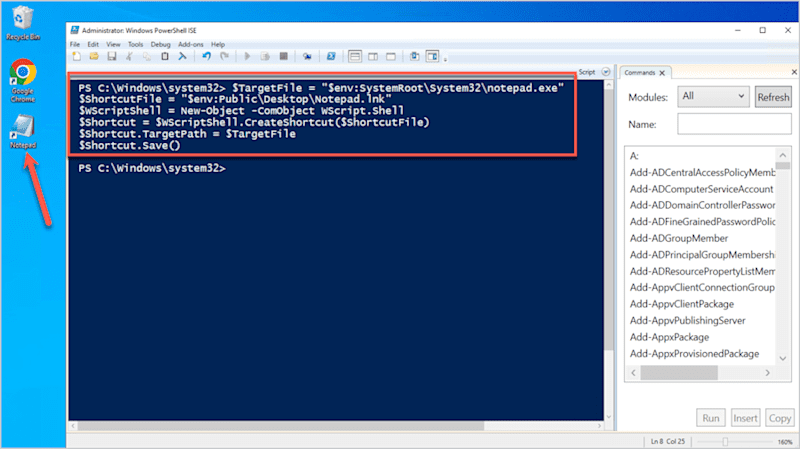
PowerShell is a powerful scripting tool that can automate repetitive Windows tasks, including creating desktop shortcuts. Whether you need to deploy an application shortcut to multiple users, create a shortcut to a shared folder, or automate workstation setup, PowerShell provides a simple and reliable solution.
Instead of manually creating shortcuts on each computer, you can use a short PowerShell script to generate .lnk shortcut files for applications, files, or folders. This approach is particularly useful for IT administrators managing Active Directory environments, enterprise deployments, or remote computers.
In this guide, you’ll learn how to create shortcuts using PowerShell with practical examples for applications and folders.
Prerequisite: The following scripts use the Windows Script Host (WScript.Shell) COM object, which is available by default on Windows.
How to Create a Shortcut to an Application Using PowerShell
Creating an application shortcut requires two pieces of information:
- The location of the application executable (.exe).
- The location where the shortcut (.lnk) should be created.
For this example, we’ll create a desktop shortcut for Microsoft Edge.
1. Begin by defining the full path of the application you want the shortcut to open.
$SourceFilePath = "C:\Program Files (x86)\Microsoft\Edge\Application\msedge.exe"
This variable stores the executable that the shortcut will launch.
2. Next, specify where the shortcut should be created and what it should be named.
$ShortcutPath = "C:\Users\Gary.Thomas\Desktop\MsEdge.lnk"
Since Windows shortcuts use the .lnk extension, make sure the file name ends with .lnk.
3. Create the WScript.Shell Object. PowerShell uses the WScript.Shell COM object to generate Windows shortcuts.
$WScriptObj = New-Object -ComObject ("WScript.Shell")
This object provides the methods needed to create and configure shortcut files.
4. Create the Shortcut Object. Use the CreateShortcut() method and pass the shortcut path created in the previous step.
$shortcut = $WScriptObj.CreateShortcut($ShortcutPath)
At this stage, the shortcut object exists but doesn’t yet point to any application.
5. Assign the application’s executable path as the shortcut target.
$shortcut.TargetPath = $SourceFilePath
When users double-click the shortcut, Windows launches the executable specified in TargetPath.
6. Finally, save the shortcut to disk.
$shortcut.Save()
Once executed, the shortcut appears in the location defined earlier.
Complete PowerShell Script
The complete script for creating a Microsoft Edge desktop shortcut is shown below.
$SourceFilePath = "C:\Program Files (x86)\Microsoft\Edge\Application\msedge.exe"
$ShortcutPath = "C:\Users\Gary.Thomas\Desktop\MsEdge.lnk"

$WScriptObj = New-Object -ComObject ("WScript.Shell")
$shortcut = $WScriptObj.CreateShortcut($ShortcutPath)

$shortcut.TargetPath = $SourceFilePath

$shortcut.Save()
Running this script creates a desktop shortcut that opens Microsoft Edge.
How to Create a Folder Shortcut Using PowerShell
PowerShell can also create shortcuts that open folders instead of applications. This is useful for frequently accessed directories, shared folders, project locations, or network drives.
In this example, we’ll create a desktop shortcut that opens a folder stored on the D: drive.
1. Specify the folder you want the shortcut to open.
$SourceFilePath = "D:\PowerShell\"
Replace the path with the folder you want to use.
2. Next, define where the shortcut should be created.
$ShortcutPath = "C:\Users\Admin\Desktop\PowerShell.lnk"
The shortcut will be saved on the desktop using the specified file name.
3. Create a new WScript.Shell object and generate the shortcut.
$WScriptObj = New-Object -ComObject ("WScript.Shell")

$shortcut = $WScriptObj.CreateShortcut($ShortcutPath)
4. Assign the folder path as the shortcut target.
You can also customise additional shortcut properties, such as the window style and keyboard shortcut.
$shortcut.TargetPath = $SourceFilePath

$shortcut.WindowStyle = 1

$shortcut.Hotkey = "CTRL+SHIFT+T"
In this example:
- TargetPath specifies the folder to open.
- WindowStyle controls how the window opens.
- Hotkey lets you launch the shortcut using Ctrl + Shift + T.
5. Save the configured shortcut.
$shortcut.Save()
Windows will create the shortcut immediately after the script finishes running.
Complete Folder Shortcut Script
$SourceFilePath = "D:\PowerShell\"
$ShortcutPath = "C:\Users\Admin\Desktop\PowerShell.lnk"

$WScriptObj = New-Object -ComObject ("WScript.Shell")

$shortcut = $WScriptObj.CreateShortcut($ShortcutPath)

$shortcut.TargetPath = $SourceFilePath
$shortcut.WindowStyle = 1
$shortcut.Hotkey = "CTRL+SHIFT+T"

$shortcut.Save()
After running the script, you’ll find a desktop shortcut that opens the specified folder. If you’ve configured the hotkey, pressing Ctrl + Shift + T will launch it as well.
Why Use PowerShell to Create Shortcuts?
Creating shortcuts manually is simple for a single computer, but it quickly becomes time-consuming in larger environments.
Using PowerShell allows you to:
- Automate desktop shortcut creation.
- Deploy shortcuts across multiple computers.
- Create shortcuts during Windows setup or login scripts.
- Standardize desktop shortcuts across an organization.
- Save time during application deployments.
Because the script relies on built-in Windows components, it works well in enterprise environments without requiring additional software.
PowerShell provides an easy and efficient way to create shortcuts for applications, files, and folders. By using the WScript.Shell COM object, you can generate Windows shortcut (.lnk) files in just a few lines of code, making it ideal for both personal automation and enterprise deployments.